
Google Business Profile: Understanding Google My Business for Healthcare Practices
Google Business Profile is a tool from Google that lets you control how your medical practice appears in Google Search and Google Maps. Formerly known as Google My Business, this tool builds a profile for your practice to display basic information, such as your office’s hours and address.
If you don’t already have a profile for your practice, we recommend setting up one. It is free to do, and it increases your chances of appearing in local Google searches when potential patients are looking for medical care.
Keep reading if you want to learn more about Google Business Profile and Google My Business for healthcare practices. We talk about the benefits of having a profile and give step-by-step instructions on how to create one. We also provide tips on how to optimize your profile to keep it relevant and updated.
The Importance of Google Business Profile for Medical Practices
Having a Google Business Profile can drive new patient acquisition by making your practice discoverable on Google, providing information about your medical services, and offering direct channels for patients to contact you.
Here are more details on some of the benefits of setting up a profile for your practice:
- Improves your local search visibility: Google Business Profile listings are usually the first items to appear in local search results on Google. Having a verified, up-to-date profile, especially one with a lot of patient reviews, sends a signal to Google that you’re a credible and trustworthy healthcare provider. This increases your chances of showing up when someone searches for medical services near them.
- Provides information about your practice: A potential patient is likely going to compare several healthcare providers before they choose one and book an appointment. During their initial search, they may just look at Google listings, so you want to make sure yours provides basic information about where you are located and what services you offer. If you leave your profile sparse, they may skip over your practice entirely.
- Gives patients a way to leave online reviews: Google Business Profile has a section where your patients can leave positive or negative reviews about their experiences with your practice. This might be the most important component of your profile because it builds trust. Current patients want to know that you’re listening to them, and potential patients want to see real examples of how you provide care.
View Website Design Options
How To Claim an Existing Google Business Profile
Google sometimes creates profiles for local businesses, organizations, or practices based on information it discovers online. For example, maybe Google finds your practice’s website, or it sees your listings on other directories, such as Yelp and Healthgrades. In which case, you want to claim the existing profile and update the information on it instead of creating a new profile from scratch. Below is what that process looks like.
Step #1. Log Into Your Google Account
You need a Google account to be able to claim a business profile. Either log into your existing account, or create a new one.
Step #2. Find Your Practice
Type your practice’s name into Google Search or Google Maps. You can add your city and state to the end of your search to help Google find you in case there are multiple businesses with the same name.
If you don’t find your practice, then Google hasn’t created a profile for you. In which case, move on to the next section where we talk about how to set up a new profile. If you do find your practice, click the link that says “Own this business,” “Claim this business,” or something similar.
Step #3. Verify Your Practice
After clicking the link, Google will offer you a list of verification methods. The available methods can vary depending on several factors, such as business type and location, but here are some of the potential options you may see:
- Video recording
- Phone or text
- Live video call
Choose one of the verification methods, and follow the on-screen instructions. In some cases, you may have to verify your business with more than one method.
Step #4. Wait for Your Confirmation Email
After you complete the verification steps, Google needs to review the information you provided. This can take up to five business days. Google will send you a follow-up email once it has verified your profile.
How To Set Up a New Google Business Profile
If you can’t find an existing Google Business Profile for your practice, you are going to create a new one. Below is a step-by-step guide.
Step #1. Log Into Your Google Account
Just like with claiming an existing business profile, you need a Google account to be able to create a new profile. Log into your Google account, or sign up for a new one.
Step #2. Add Your Practice
Visit the Google Business Create page. Under “Can’t find your business?,” click “Add your business to Google.”
Step #3. Enter Your Practice Name & Business Category
Type the business name of your practice into the first box. In the second box, start typing what type of business you are, and Google will load a drop-down menu of potential categories to choose from. Some of the most relevant ones for a medical practice include:
- Doctor
- Medical group
- Medical center
- Medical clinic
- Medical office
There are also categories for specific areas of practice. Don’t get too hung up on the category, though, because you can change it or add more later.
Step #4. Add Your Location
The next page will ask if you have a physical location. Click “Yes” and “Next,” and you’ll go to a new screen to add your address.
Step #5. Fill In Your Service Area
The next page will ask if you provide deliveries or home and office visits. Since you offer at-home and/or in-office appointments, click “Yes” and “Next” to get to the screen where you input what areas you service. You can input the entire country, an entire state within the country, or a specific city or town. You can also add more than one location.
Step #6. Add Your Contact Details
On the next screen, add the phone number for your office’s front desk and the URL for your practice’s website.
Step #7. Set Your Notification Preferences
Decide if you want to receive notifications from Google about how to manage your profile. Select “Yes” or “No” and then “Next.”
Step #8. Verify Your Practice
The last step in setting up your new Google Business Profile is to verify it. This process is going to look similar to the one in the previous section, following steps 3 and 4.
Best Practices for Optimizing Your Healthcare Google Business Listing
Now that you have your Google Business Profile created, you may think that you’re done. However, a bare-bones profile may limit your ability to rank in local Google search results. Below, we offer some recommendations on how to optimize your profile for maximum online visibility.
Add Additional Information
Outside of the basic information required to create a profile, there are several other sections that are optional. We recommend filling in at least some of these sections because a more complete Google Business Profile provides useful practice details to both Google and patients. Google uses this information to determine rankings, and patients read it to learn more about your practice.
Here are some of the additional sections we recommend including on your profile:
- Business Description: Briefly describe who you are and what you do within Google’s 750-character limit.
- Business Hours: Add your office’s operating hours so that patients know when you’re available for appointments.
- Products/Services: Provide more details on your healthcare services since Google limits how long your main description can be.
- Photos: Add high-quality images of your logo, exam rooms, and team members to humanize your practice and show patients what to expect when they visit.
- Updates: Share timely information with patients, such as new business hours and discounted services.
Respond to Patient Reviews & Questions
Google offers several opportunities for patient engagement on your profile. You can address common patient concerns through the Q&A section and encourage patient feedback with the reviews section. Check your profile a few times a week, and respond to any questions or reviews that have come through. Not only does this improve patient satisfaction by showing your current patients that you care, but it can also attract more patients by providing Google users with helpful insights on what your patient experience is like. When responding, keep comments focused on your practice and services, and avoid referencing any individual’s specific treatment to remain HIPAA compliant.
Keep Information Updated
Aside from staying on top of questions and reviews, also keep the information in the other sections up to date. For example, if your address, hours, or services change, make sure your Google Business Profile reflects that. This ensures that patients get accurate information. It also signals to Google that your practice is still open and accepting patients, increasing your chances of appearing in local search results.
Examples of Optimized Google My Business Healthcare Listings
Looking at examples of Google Business Profile healthcare listings can help you get inspiration for your own profile. To save you from having to comb through the thousands of listings on Google, we explore two examples below: Cedars-Sinai Medical Center and Windy City Health Partners.
Cedars-Sinai Medical Center; Los Angeles, CA
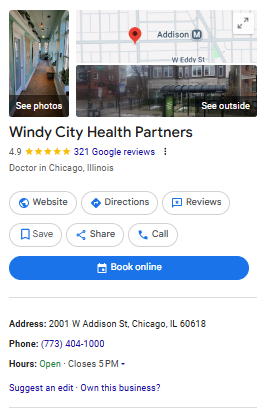
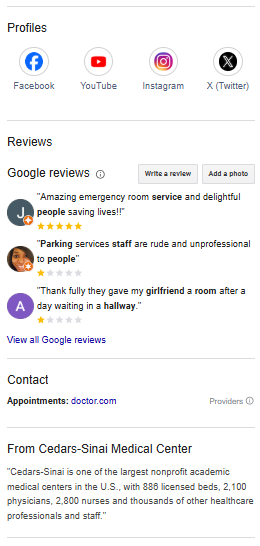
Cedars-Sinai Medical Center is one of the largest hospitals in Los Angeles, and its robust Google Business Profile reflects that. We like that the profile has over 1,500 patient reviews and that a staff member has taken the time to respond to the majority of them. We also like that the description goes far beyond basic contact information to include other details patients might care about, such as the fact that it’s a Level I Trauma Center capable of handling any type of injury or condition.
Windy City Health Partners; Chicago, IL
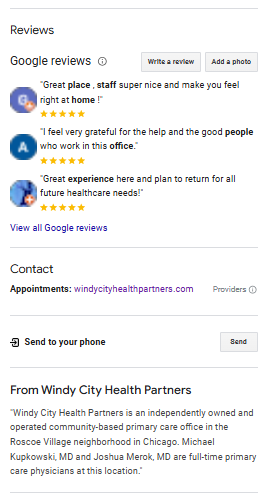
A large hospital may not be relevant to your small private practice, which is why we have included Windy City Health Partners as an example as well. For a practice with just two doctors, it has a lot of patient feedback—over 300 positive reviews with an overall rating of 4.9 stars. Compared to other primary care practices and family doctors close by with 100 or fewer reviews, this practice stands out. We also like that there’s a big, blue button with an appointment link because that makes it easier and faster to convert Google users into new patients.
Final Thoughts
Google Business Profile is a free way to build a strong online presence for your medical practice. An optimized profile can help you reach local patients by appearing in their search results and providing them with useful information about your services.
Contact us today if you need help with creating your Google Business Profile. Officite offers digital marketing solutions for physicians, including an SEO service that manages your Google profile and other local SEO efforts.

Katie McNichols is an experienced writer and editor, specializing in digital content. The aim of her blog posts is to demystify digital marketing for healthcare professionals. She hopes to equip them with the tools they need to build an online presence that promotes their services and grows their practice.